
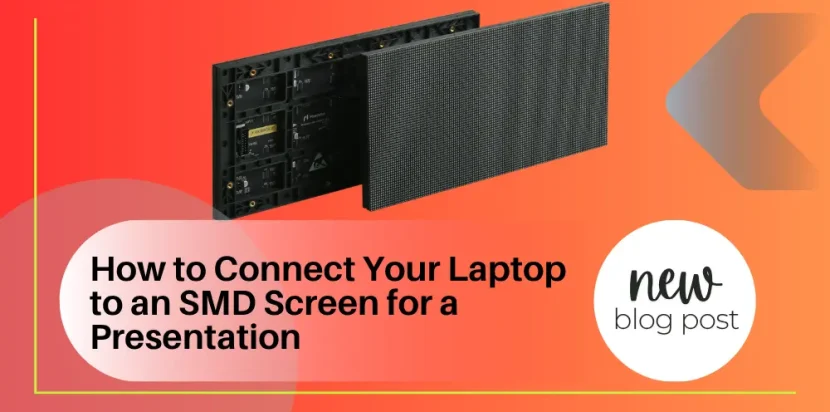
In the fast-paced environment of corporate seminars, live keynote addresses, and high-stakes business pitches, your visual presentation is just as important as the words you speak. While traditional projectors are fading into obsolescence due to washed-out colors and poor ambient light performance, modern digital displays have become the gold standard. However, the technical transition from a standard computer monitor to a massive digital billboard can be intimidating. Understanding exactly how to connect laptop to SMD LED screen systems is a mandatory skill for any modern AV technician, event planner, or corporate presenter.
Unlike a standard household television that simply requires an HDMI cable, commercial digital signage operates on a fundamentally different architecture. The display is not a single monitor; it is a matrix of interconnected cabinets, receiving cards, and power supplies. Therefore, when you connect laptop to SMD LED screen hardware, you are actually interfacing with a dedicated video processor or sending controller. Failing to understand this bridge between your personal computer and the display matrix will result in skewed aspect ratios, distorted resolutions, or a complete lack of signal.
This comprehensive, highly technical 2000-word guide is designed to eliminate the guesswork. Whether you are dealing with a boardroom installation or a massive stage backdrop, we will break down the hardware requirements, the software configurations, and the step-by-step methodologies required to flawlessly connect laptop to SMD LED screen setups. By adhering to these E-E-A-T (Expertise, Experience, Authoritativeness, Trustworthiness) recognized practices, you will guarantee that your next presentation is visually spectacular and technically sound.
Understanding the Hardware Before You Connect Laptop to SMD LED Screen
Before plugging in any cables, you must understand the signal flow. When you attempt to connect laptop to SMD LED screen matrices, your computer’s graphics card (GPU) generates a standard video signal—typically 1920×1080 (Full HD) or 3840×2160 (4K) at a 60Hz refresh rate. However, your commercial display might have a completely custom resolution, such as 1536×768 or 2048×1152, depending on its physical dimensions and pixel pitch.
To bridge this gap, you do not plug your computer directly into the screen. Instead, you connect laptop to SMD LED screen systems via a Video Processor (also known as a sending box or scaler). Brands like Novastar, Colorlight, and Linsn manufacture these processors. The video processor acts as a universal translator. It takes your standard laptop resolution, scales it pixel-by-pixel, and converts it into the proprietary data packets that the receiving cards inside the display can understand.
Whether you are utilizing a standard BIA Indoor SMD Screen for a corporate lobby or deploying a massive BIA Outdoor SMD Screen for a festival, the foundational principle remains identical: you must first route your laptop’s output into the sending controller.
The Essential Cables Needed to Connect Laptop to SMD LED Screen
To successfully connect laptop to SMD LED screen processors, you must utilize high-bandwidth video cables capable of transmitting uncompressed data without dropping frames.
- HDMI (High-Definition Multimedia Interface): This is the most common and reliable method to connect laptop to SMD LED screen systems. An HDMI 2.0 cable supports 4K resolution at 60 frames per second, which is more than sufficient for standard presentations. It also carries audio, which is crucial if your presentation includes embedded videos with sound.
- DisplayPort (DP): For extremely high-resolution, ultra-wide screens, DisplayPort is the preferred choice for AV professionals. When you use DP to connect laptop to SMD LED screen hardware, you benefit from higher bandwidth and better multi-monitor syncing.
- USB Type-C / Thunderbolt: Modern laptops (especially Apple MacBooks and premium Windows ultrabooks) often lack full-sized HDMI ports. In these instances, you will need a high-quality USB-C to HDMI or USB-C to DisplayPort active adapter to successfully connect laptop to SMD LED screen processors. Never use cheap, unbranded dongles, as they introduce severe latency and HDCP (High-bandwidth Digital Content Protection) handshake errors.
- DVI (Digital Visual Interface): While slightly older, many legacy video processors still rely heavily on DVI inputs. If you are dealing with an older system, you may need an HDMI-to-DVI adapter to connect laptop to SMD LED screen hardware safely.
Step-by-Step Guide: How to Connect Laptop to SMD LED Screen via Wired Setup
Wired connections are the undisputed champion of reliability. For high-stakes presentations, wireless casting introduces unacceptable risks of lag and disconnection. Here is the exact, fail-safe procedure to connect laptop to SMD LED screen systems using a hardwired connection.
Step 1: Power Sequencing the Hardware Always power on the video processor and the display matrix before you attempt to connect laptop to SMD LED screen systems. This ensures that the Extended Display Identification Data (EDID) is actively broadcasting from the processor, waiting for your computer to recognize it.
Step 2: Establish the Physical Connection Take your HDMI or DisplayPort cable and plug it into the output port of your laptop. Take the other end and plug it into the designated “Input” port on the back of the video processor. The processor will usually have multiple inputs; ensure you note whether you plugged into HDMI 1, DVI, or DP. This physical link is the core of how you connect laptop to SMD LED screen hardware.
Step 3: Select the Input Source on the Processor Video processors act like switchers. Even after you physically connect laptop to SMD LED screen processors, the screen will remain blank until you press the corresponding input button (e.g., “HDMI”) on the front panel of the processor. Once pressed, the processor will lock onto your laptop’s signal.
Step 4: Configure the Laptop Display Settings (Windows) Now that the hardware handshake is complete, you must configure your operating system. Right-click your Windows desktop and select “Display Settings.” Scroll down to the “Multiple displays” section. By default, Windows might choose “Duplicate these displays.” For a professional presentation, this is usually acceptable, as you want the audience to see exactly what is on your monitor. This is why most users prefer to duplicate when they connect laptop to SMD LED screen setups.
Step 5: Configure the Laptop Display Settings (Mac OS) If you are using an Apple computer, click the Apple menu > System Settings > Displays. You will see both your built-in display and the external video processor. To mirror your screen perfectly when you connect laptop to SMD LED screen hardware, right-click the external display icon and select “Mirror Built-in Display.”
Mastering Resolution and Scaling for Flawless Presentations
The biggest mistake novices make when they connect laptop to SMD LED screen hardware is ignoring aspect ratios and pixel scaling. A standard PowerPoint presentation is designed for a 16:9 aspect ratio. If you connect laptop to SMD LED screen displays that are ultra-wide (e.g., 32:9) or custom-shaped, your presentation will appear stretched, distorted, or flanked by massive black bars (letterboxing).
To fix this, you must access the scaling menu on your video processor. High-end processors feature a “PIP” (Picture-in-Picture) or “Scale” function. When you connect laptop to SMD LED screen systems, press the Scale button. The processor will intelligently stretch or zoom your laptop’s 1920×1080 signal to fit the exact pixel dimensions of the LED matrix.
If you are utilizing a specialized, custom-shaped BIA Flexible SMD Screen or an architecturally integrated BIA Ultra Thin SMD Screen, simple scaling might not be enough. In these advanced scenarios, when you connect laptop to SMD LED screen processors, you must open the control software (like NovaLCT) and manually map the screen coordinates to ensure your presentation text does not fall across physical gaps or curved seams in the display.
How to Connect Laptop to SMD LED Screen Wirelessly
While hardwired connections are recommended for critical keynotes, there are scenarios—such as collaborative boardroom meetings or informal workshops—where the presenter needs to roam the room freely. In these environments, you can connect laptop to SMD LED screen systems wirelessly.
To achieve this, the receiving end must have an asynchronous multimedia player or a wireless casting receiver (like a Novastar Taurus series player, Apple TV, or Google Chromecast) plugged into the video processor’s input.
When utilizing a Novastar Taurus player, you can connect laptop to SMD LED screen hardware over the local Wi-Fi network. You simply open the ViPlex Express software on your laptop, locate the Taurus player on the network, and select “Screen Projection.” This will instantly cast your desktop to the display over the air. While incredibly convenient, remember that whenever you wirelessly connect laptop to SMD LED screen systems, there will be a slight delay (latency) of about 100 to 300 milliseconds. This latency is fine for slide decks but unacceptable for fast-paced video playback or live gaming.
Managing Audio When Connecting to a Commercial Display
A presentation is rarely just visual. Embedded videos, sound effects, and background music require careful audio routing. When you connect laptop to SMD LED screen setups using an HDMI cable, the HDMI protocol carries both the video and the audio signal simultaneously into the video processor.
However, the LED display itself rarely has built-in speakers. To hear the sound, you must route the audio out of the processor. On the back of the sending box, locate the 3.5mm “Audio Out” jack. You will need to run an auxiliary cable from this output port directly into your venue’s PA system, audio mixer, or active speakers.
If you fail to configure this, and you only connect laptop to SMD LED screen video ports without routing the audio output to a sound system, your presentation videos will play in total silence. Always verify in your laptop’s sound settings that the output device is set to the external display (often labeled as the name of the processor, e.g., “Novastar” or “Realtek Digital Output”) rather than the laptop’s internal speakers.
Best Practices for Designing Presentations for Large Displays
Knowing how to technically connect laptop to SMD LED screen hardware is only part of the battle; the content itself must be optimized for the medium. Commercial displays, particularly those utilizing ultra-bright diodes like the BIA Nationstar SMD Screen, operate at vastly higher brightness levels (measured in Nits) than a computer monitor.
- Use High-Contrast Color Schemes: When you connect laptop to SMD LED screen displays, avoid using a pure white background for your slides. A massive wall of pure white LEDs acts like a spotlight and will physically blind your audience, causing eye fatigue. Opt for dark backgrounds (navy, black, dark gray) with bright, bold text.
- Optimize Font Sizes: Just because the screen is massive does not mean your text should be microscopic. The rule of thumb for large digital signage is that fonts should be no smaller than 40pt to remain legible from the back of the room.
- Embed Media Locally: Never rely on a live internet connection to play a YouTube video during a keynote. Always download your video files and embed them directly into your PowerPoint or Keynote file. When you connect laptop to SMD LED screen hardware, local playback ensures zero buffering, maximum frame rate, and no embarrassing pop-up ads mid-presentation.
- Test the Refresh Rate: Laptops typically output at 60Hz. Ensure your video processor is configured to receive and map this 60Hz signal correctly to prevent visual tearing. If you connect laptop to SMD LED screen hardware and notice a horizontal line scanning down the screen, you have a refresh rate mismatch that must be resolved in your computer’s advanced display adapter settings.
Ensuring Uninterrupted Connectivity
Professional AV technicians do not rely on hope; they rely on redundancy. When setting up a high-profile corporate event, always have a backup plan. Bring duplicate cables. If you primarily connect laptop to SMD LED screen systems using HDMI, bring a spare HDMI cable and a backup DisplayPort adapter. Physical cables can fail due to bending or heavy foot traffic over the stage floor.
Furthermore, disable all sleep settings on your laptop. Go into your power management settings and ensure the computer is set to “Never Sleep” when plugged in. Disable the screen saver. There is nothing more unprofessional than a presenter pausing to answer a question, only to have the laptop go to sleep, completely severing the signal after you carefully took the time to connect laptop to SMD LED screen hardware.
If you are planning an event and need reliable, high-end display infrastructure, the team at BIA is ready to assist. You can explore our extensive inventory of dependable hardware by visiting the main BIA SMD Screens homepage or browsing our comprehensive Products Catalog. We engineer our solutions to ensure that every time you connect laptop to SMD LED screen controllers, the integration is flawless, reliable, and visually stunning.
Frequently Asked Questions (FAQs)
1. Why does my presentation look stretched when I connect laptop to SMD LED screen processors? This happens when the aspect ratio of your laptop (usually 16:9) does not match the physical aspect ratio of the display matrix. To resolve this, you must use the “Scaling” or “PIP” function on your video processor to force the image to maintain its original aspect ratio, which may introduce black bars on the sides but will prevent distortion.
2. Can I connect laptop to SMD LED screen systems without a video processor? No, you cannot. A standard computer graphics card outputs formats like HDMI or DisplayPort, but the receiving cards inside the display cabinets only understand proprietary data signals (via Ethernet cables). The video processor is mandatory to convert the standard video signal into the required data format.
3. Why is there a delay between my mouse movement and the screen when I connect laptop to SMD LED screen wirelessly? Wireless casting technologies (like Miracast, Apple AirPlay, or Novastar Screen Projection) compress the video signal, send it over a Wi-Fi network, and decompress it at the receiver. This encoding/decoding process inherently introduces latency (delay). For zero-latency presentations, you must use a hardwired HDMI or DisplayPort cable.
4. How do I get sound to play through the venue speakers when I connect laptop to SMD LED screen systems? When using an HDMI cable, both audio and video are sent to the video processor. However, the display itself does not have speakers. You must plug an audio cable (usually a 3.5mm aux cord or RCA cable) into the “Audio Out” port on the back of the video processor and run that cable directly into your venue’s sound mixer or PA system.
5. What is the best cable to use when I connect laptop to SMD LED screen hardware? For standard presentations up to 4K resolution at 60Hz, an HDMI 2.0 cable is highly recommended due to its reliability and widespread compatibility. For ultra-wide screens or setups requiring higher refresh rates (like 120Hz or 144Hz), a high-quality DisplayPort 1.4 cable is the superior choice. Always avoid cheap adapters whenever possible.
Is your hardware ready for the next big event? Executing a flawless presentation requires premium technology and expert integration. Don’t leave your keynote to chance with outdated projectors or confusing signal routing. If you need professional assistance to perfectly connect laptop to SMD LED screen systems, or if you are looking to upgrade your corporate AV infrastructure, our dedicated engineers are ready to help. Visit our Contact Page
to schedule a consultation, or join our growing professional community on Facebook for more expert tutorials and industry insights. Elevate your presentations with BIA today!
Comments are closed